Growth: your marketing plan
A 30 day marketing plan, ready ads, social posts and pictures, made for your business.
Growth writes your marketing for you: a 30 day plan, ready ads, 12 social posts on a calendar and branded pictures. Open Growth in the side menu (on a phone: More, then Growth).
Make your plan
- Answer 4 questions: your type of business, your city and service area, your daily ad budget and your main goal.
- Click Make my plan. It takes about a minute. You can leave the page; it keeps going.
- Check the drafts on the Plan, Ads and Posts tabs.
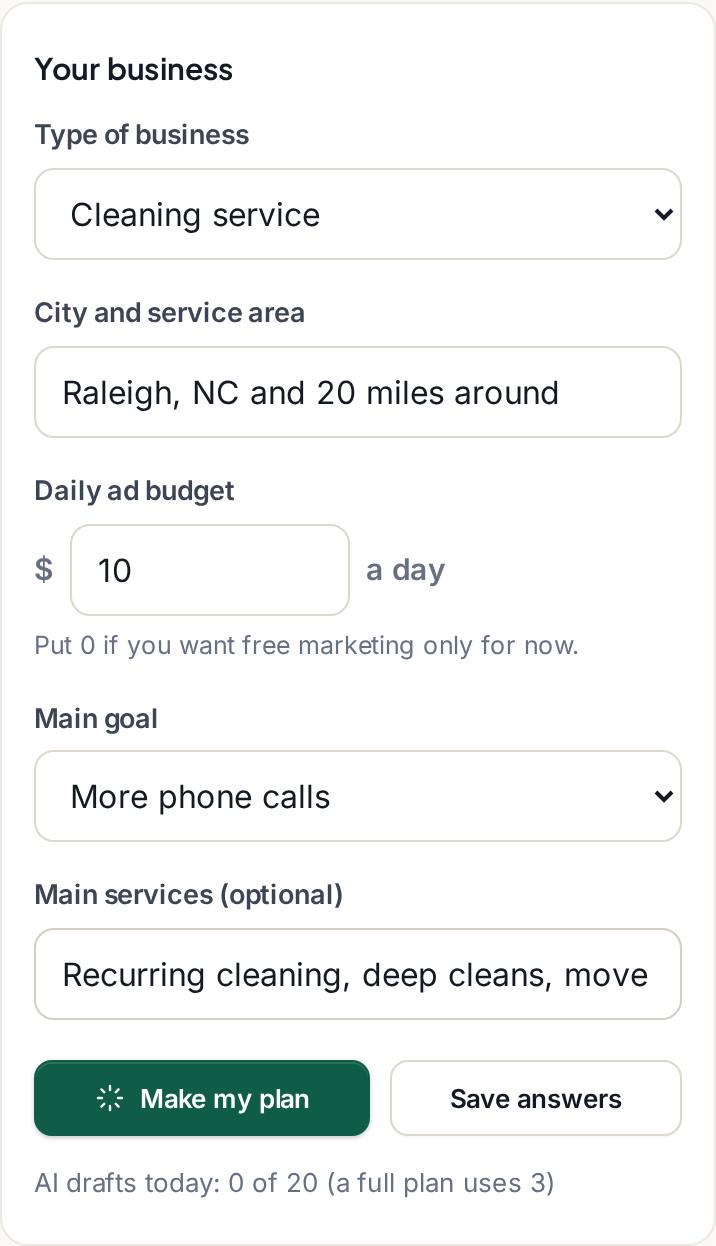
The plan picks where to advertise for you. With a budget under $20 a day it picks one paid channel, so your money isn't spread too thin, plus the free ones (your Google Business Profile and your social pages). Each channel comes with a short reason that names your city and your kind of business.
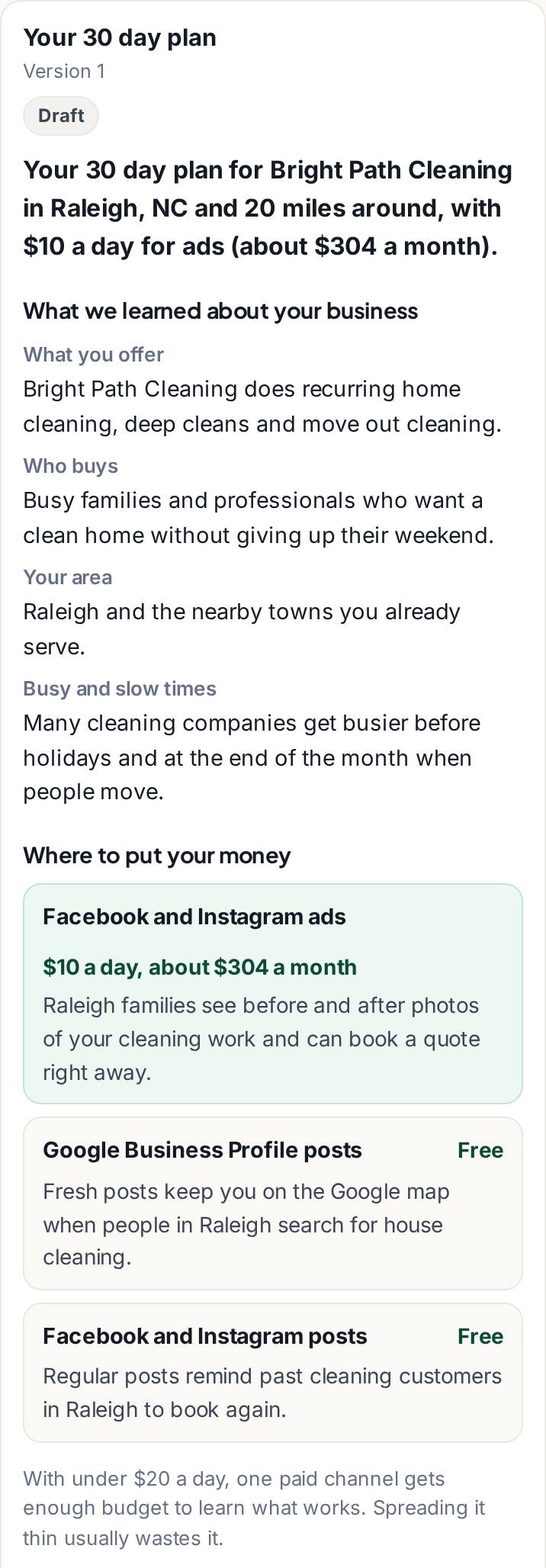
We make drafts, you post them
Assistly never posts anything or spends any money for you. Every item says Draft, Approved or Posted by you.
- Edit any text, or click New version for a fresh one.
- Approve it when it's right.
- Copy or Share it, then post it yourself where you advertise.
- Click I posted it and paste the link to your post, so you can find it later.
Check before you approve
The AI only uses facts from your website and your answers. When a draft mentions a price, a discount, a guarantee, "best", reviews, ratings, years in business or a license that your website doesn't show, those words are marked. Edit them, or tick that they are true for your business, before you approve.
Pictures
Click Picture on an ad or post to make a branded picture with your color, your logo (if you added one) and the headline. Pick a layout and a size (square for posts, tall for stories), then Download.
Tracked links and QR codes
Every ad and post has its own tracked link to your website and a QR code for flyers and your truck. A Facebook and Instagram ad has two tracked links: use the Facebook link in your Facebook ad and the Instagram link in your Instagram ad, so you can see which one brings leads and the budget split can learn from each. Links you copied before the two were split keep working; their leads count as Facebook or Instagram together. When someone comes through it and leaves their details in the chat, the lead shows Confirmed with the name of that ad or post. The top of the Growth page shows your confirmed leads, how many were booked or won, and your cost per lead once you type what you spent on ads. Leads that didn't come through a Growth link show as Unknown source, so you only see results we can prove.
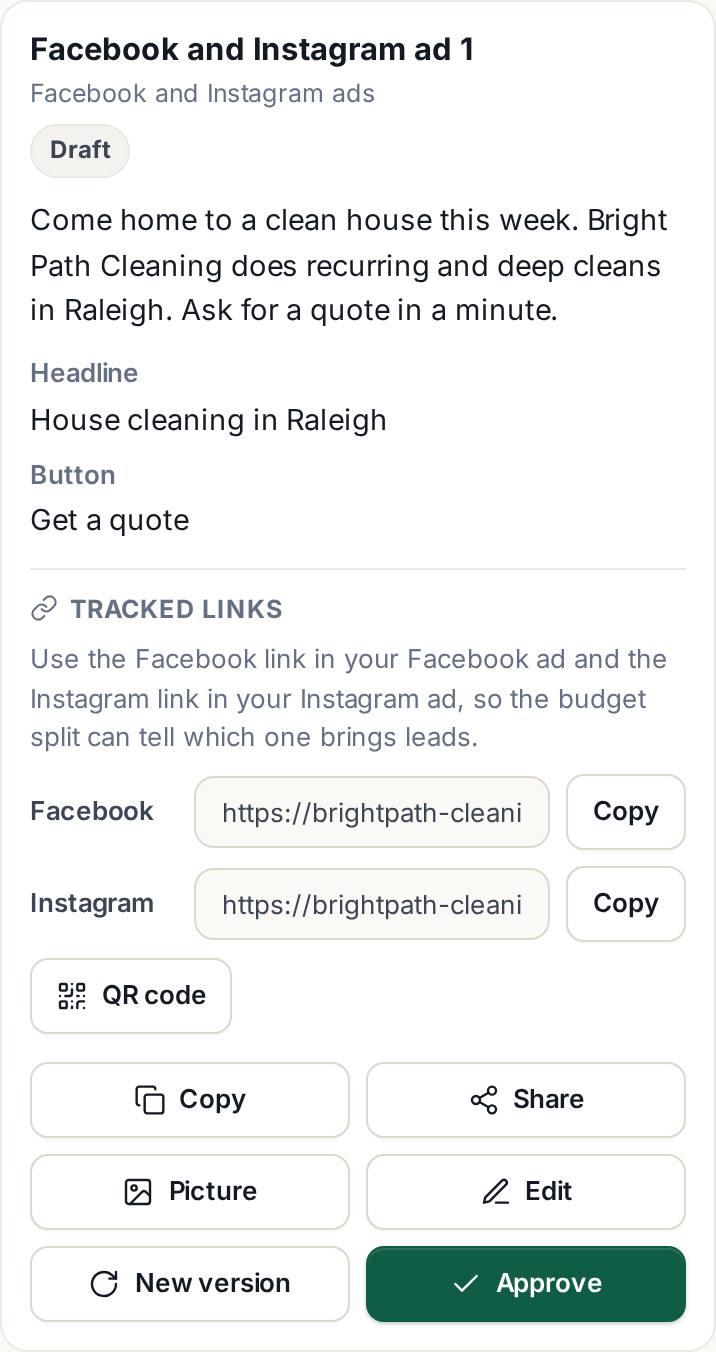
After your plan is made, Launch my first campaign walks you through 3 steps: pick the recommended ad, copy it with its tracked link, then post it and paste the link to your post.
Where to spend your budget
The Where to spend your budget card splits your monthly ad budget across Google search ads, Facebook ads, Instagram ads, flyers with your QR code and the free channels, in exact dollars that add up to your budget, with a short reason for each that names your city and your kind of business. Change the amount and click Recompute any time.
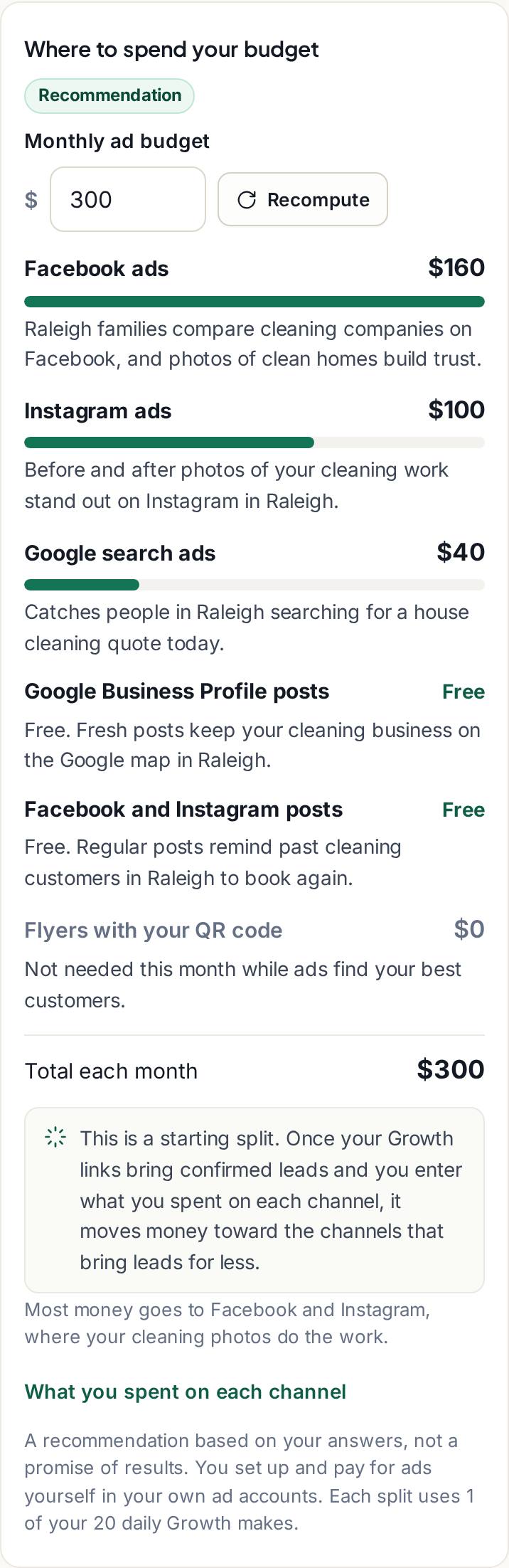
At first it is a starting split. Open What you spent on each channel and type what you really spent. Once your tracked links bring confirmed leads, the split moves money toward the channels that bring leads for less, and says why with your own numbers. Facebook and Instagram are compared on their own, each through its own link. It is always a recommendation, never a promise of results.
Share your plan
Under your plan, click Turn on share link to get a read only link for a partner, your team or a friend. It shows your plan, your budget split and 2 example drafts. It never shows your leads, results, what you spent, emails or phone numbers, and search engines don't list it. Click Turn off and the link stops working at once. Turning it on again makes a new link.
Ask Growth
Ask Growth is a chat with a marketing advisor that knows your plan, your budget split, your ads, your posts and your results. Ask where to spend, what to post this week, or why an ad isn't bringing calls. When it writes an ad or a post, click Save to my drafts and it appears with your other drafts, marked Draft.
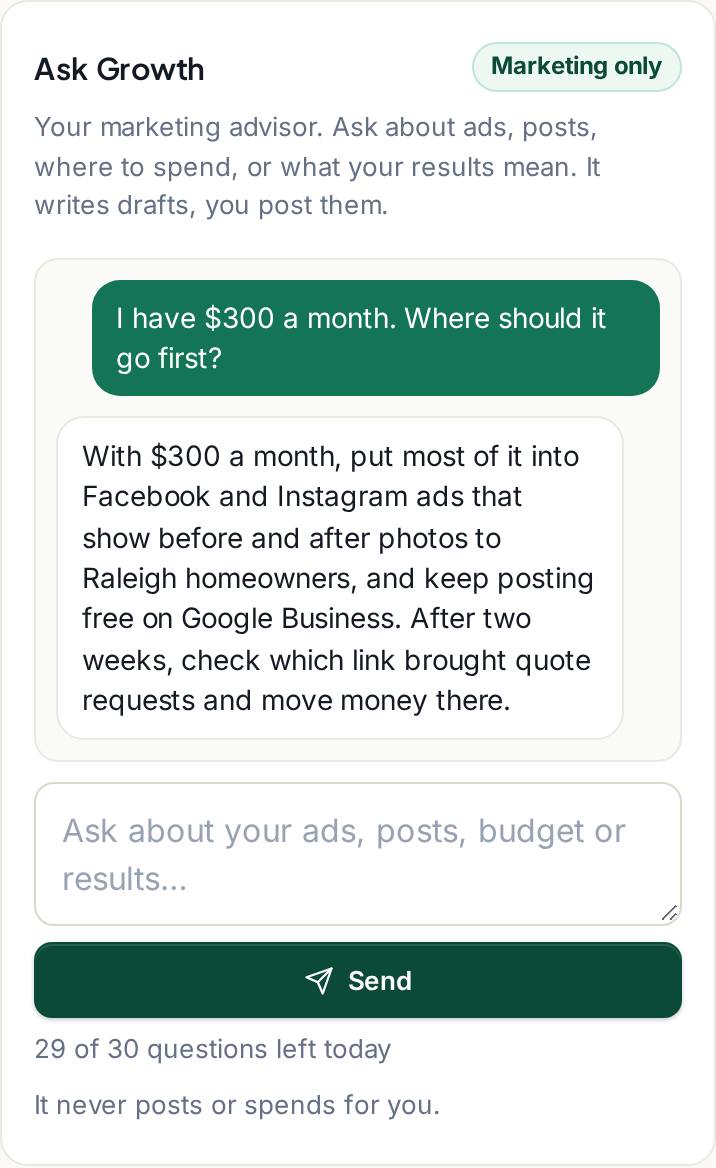
Ask Growth only talks about your marketing. It drafts, you post: it never posts or spends anything for you. You can ask up to 30 questions a day, and your last 50 messages are saved.
Results are estimates
Budgets and numbers in the plan are estimates for planning, not promises. The real results are the leads you see on your Leads page.
Growth is included in every plan, Free too. You can make up to 20 AI drafts a day (a full plan counts as 3, a budget split counts as 1).
Still stuck?
Ask our assistant: it knows every article here, and our team reads every chat.