Connect WhatsApp: your AI answers WhatsApp messages
Step by step: connect your WhatsApp Business number so the same AI answers your customers on WhatsApp.
Your Assistly AI can answer the messages customers send to your WhatsApp Business number. It uses the same knowledge as your website chat (your website pages, files and your own answers), every WhatsApp chat shows up in your Inbox with a green WhatsApp label, and you or your team can take over any chat and reply from the dashboard.
It works through Meta's official WhatsApp Cloud API. Replies to customers who message you are free (Meta doesn't charge for answers inside 24 hours of the customer's message). Assistly never sends marketing messages and never writes to anyone first.
You do this once. It takes about 10 minutes with the step by step wizard. Keep your Assistly dashboard open on Integrations → WhatsApp in another tab.
What you need
- A Meta Business account (free) at business.facebook.com.
- Your WhatsApp Business number. It needs to be able to receive a text or call for the code Meta sends.
- A Meta app (free) at developers.facebook.com. It's just the switch that connects your number to Assistly. You don't write any code.
Using the WhatsApp Business app on your phone today?
Read this first. A number can work with the Cloud API in one of two ways:
- Coexistence: Meta lets you keep using the WhatsApp Business app on your phone with the same number while the AI answers too. When you add the number in Meta, choose the option to connect your existing WhatsApp Business app and scan the QR code with your phone. Meta is still rolling this out: some countries and numbers can't use it yet, and some features of the phone app are limited.
- Move the number: the number moves to the Cloud API, and the WhatsApp Business app on your phone stops working with it (you then reply from your Assistly inbox). To do this you first delete the WhatsApp account on that number in the phone app.
Not sure? A new or second number avoids the question completely.
Private chats only
It only answers private chats, never group chats. Messages in WhatsApp groups are ignored.
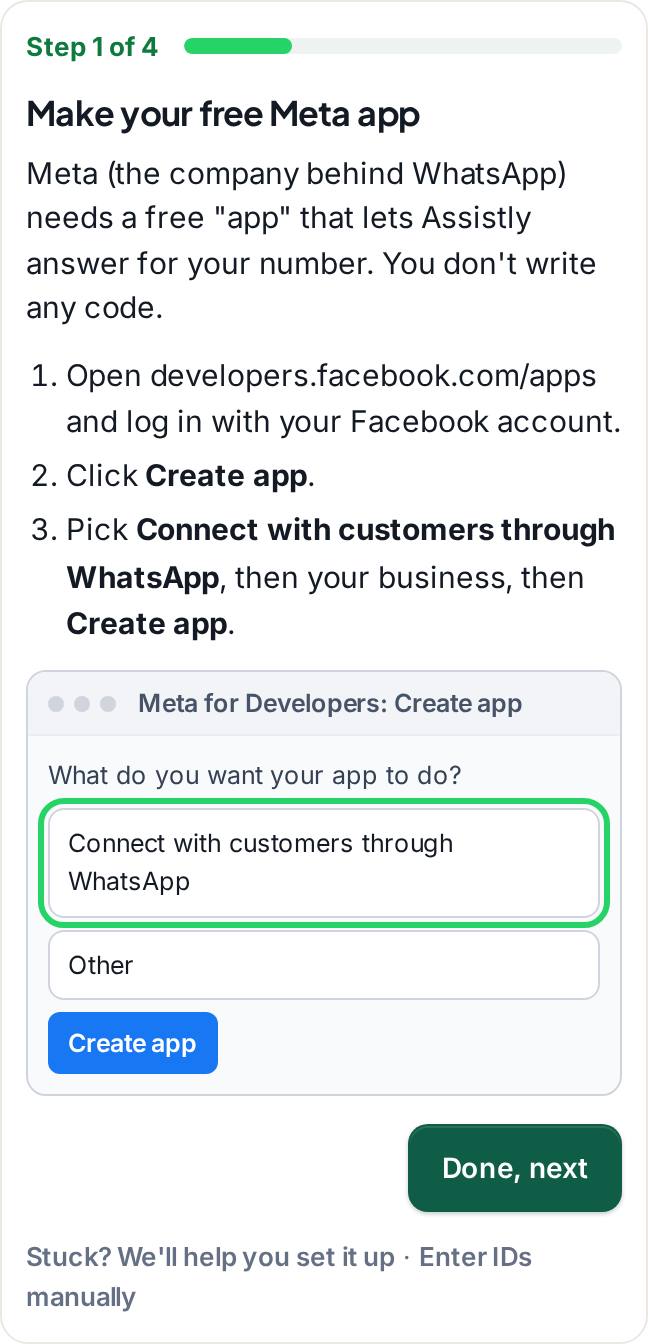
Step 1. Make your free Meta app
In Assistly open Integrations → WhatsApp. The setup goes one step per screen, with a Stuck? We'll help you set it up link on every step.
- Go to developers.facebook.com/apps, log in with the Facebook account that manages your business, and click Create app.
- When Meta asks what the app should do, pick Connect with customers through WhatsApp (in older accounts: Other, then Business). Pick your Meta Business account (Meta also calls it a business portfolio) and click Create app.
Step 2. Add your WhatsApp number in Meta
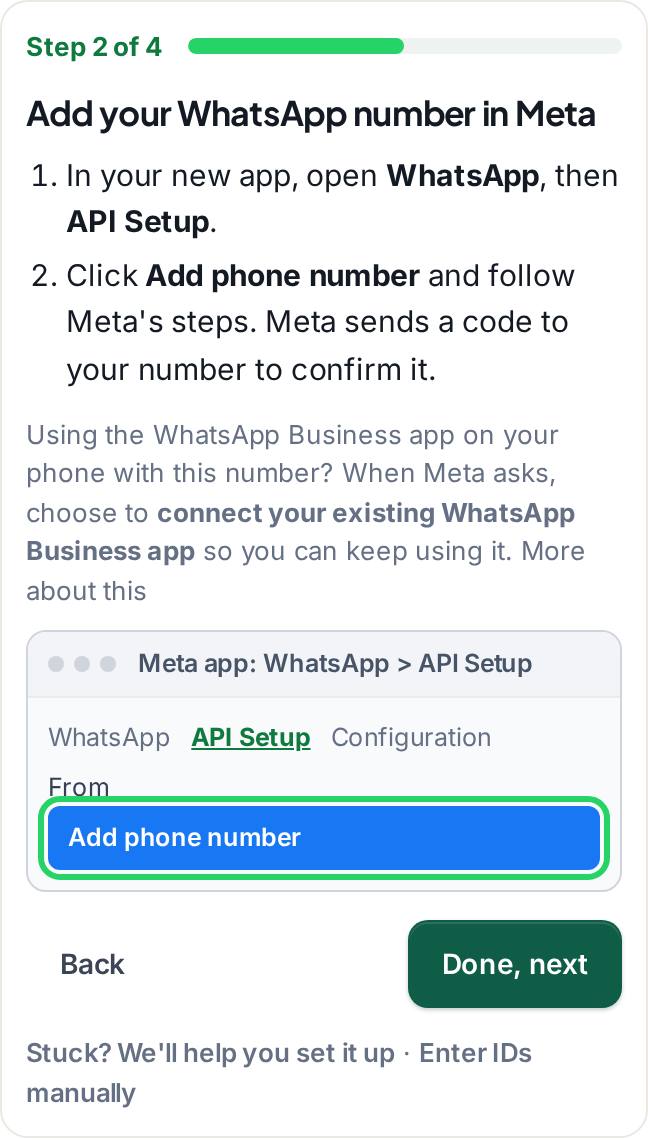
- In your app open WhatsApp → API Setup (on newer apps: Use cases → Customize).
- Click Add phone number and follow Meta's steps (this is where you choose coexistence if you want it). Meta sends a code to the number to confirm it.
You know it worked when your business number shows in the From list on the API Setup page.
Step 3. Make your permanent key
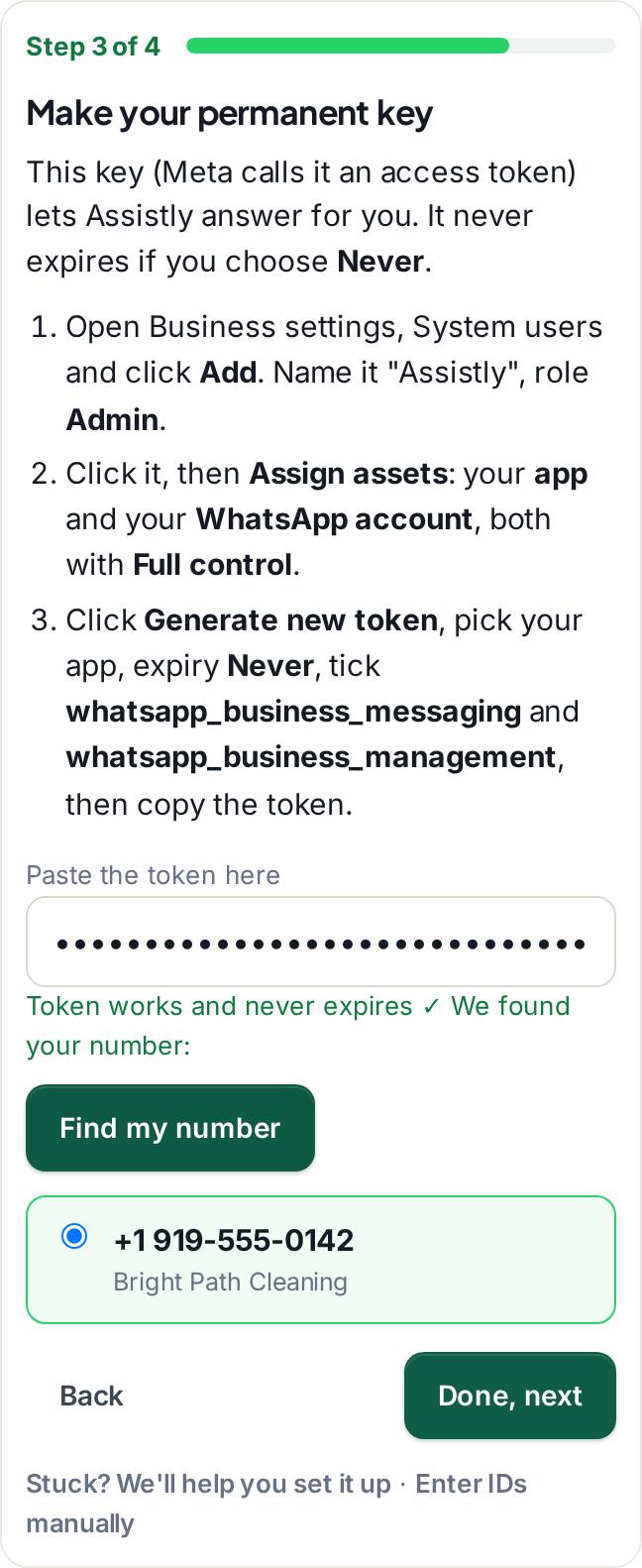
Meta calls it an access token. The one on the API Setup page stops working after 24 hours, so make a permanent one:
- Go to business.facebook.com → Settings (Business settings) → Users → System users and click Add. Name it "Assistly", role Admin.
- Click the new system user, then Assign assets: your app with Full control, and your WhatsApp account with Full control. Save.
- Click Generate new token, pick your app, set Token expiration to Never, tick whatsapp_business_messaging and whatsapp_business_management, click Generate token and copy it right away (Meta shows it only once).
- Paste it in Assistly and click Find my number. Assistly finds your WhatsApp account and number by itself and shows them. If you have more than one number, pick the one the AI should answer.
Step 4. Copy your App secret
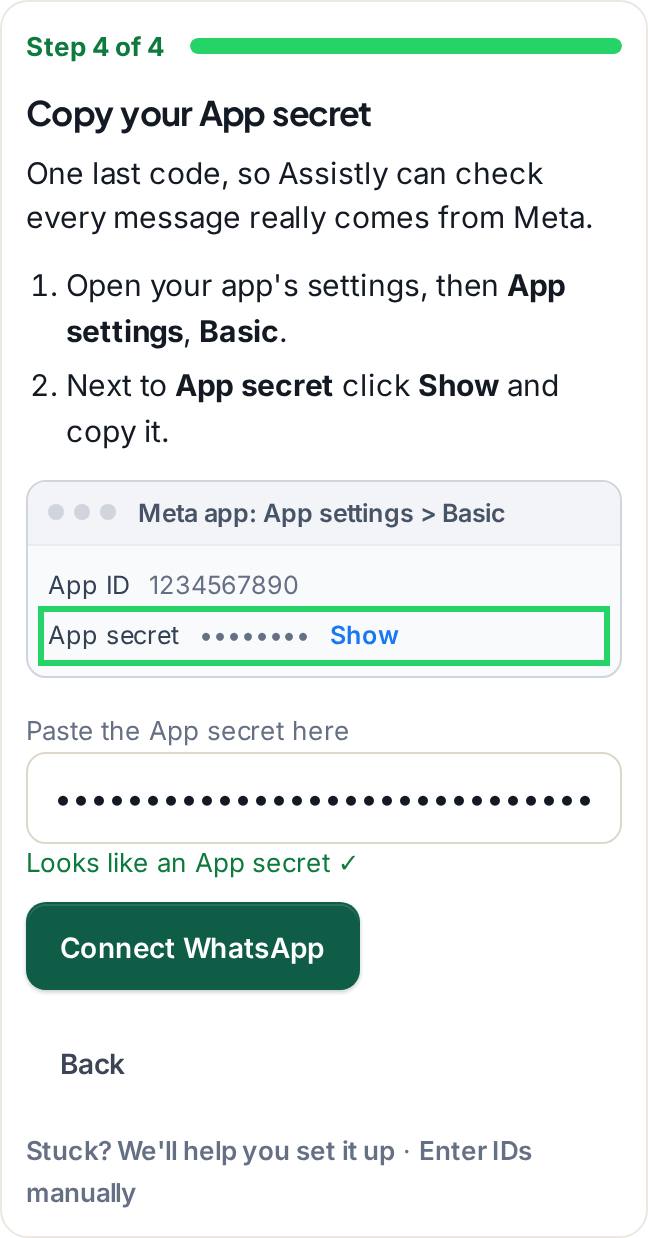
- In Assistly click the link to your app's settings, or in your Meta app open App settings → Basic.
- Click Show next to App secret, copy it (32 letters and numbers) and paste it in Assistly.
- Click Connect WhatsApp. Assistly checks everything with Meta and connects your Meta app to Assistly by itself, so there is nothing to paste in Meta's Configuration page.
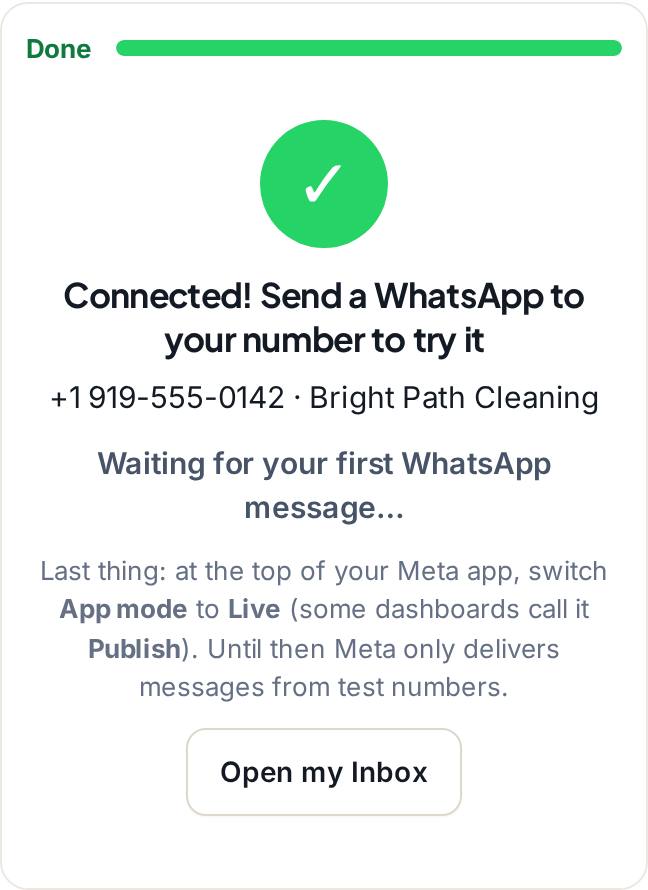
When it worked you see a big green Connected! screen. Send a WhatsApp message to your business number from another phone: the screen turns to Got it when it arrives, the AI answers in a few seconds, and the chat appears in your Inbox.
If Assistly asks for one more step in Meta
Rarely Meta doesn't let Assistly connect the app by itself. Then Assistly shows a Callback URL and a Verify token with Copy buttons:
- In your Meta app open WhatsApp → Configuration. Under Webhook click Edit, paste both and click Verify and save.
- Under Webhook fields, find messages and click Subscribe (or turn its switch on).
- Click Check again in Assistly.
Prefer to type the IDs yourself?
Click Enter IDs manually under the steps. You then paste the Phone number ID and the WhatsApp Business Account ID from WhatsApp → API Setup (two different numbers of about 15 digits, not your phone number), the token and the App secret, and click Save and test.
Publish the app
While the Meta app is in Development mode, Meta only sends test messages, not your real customers' messages. When everything works, switch App mode to Live at the top of the app page (newer dashboards call it Publish; Meta may ask for a privacy policy link, and you can use your website's). For real customers at scale Meta may also ask you to verify your business in Business settings.
How it works day to day
- Text messages get an AI answer, using your website, files, your own Q&A answers and your business hours, just like the website chat.
- Photos: the AI looks at the photo and its caption and answers, and the photo shows in your Inbox.
- Voice notes and files: the AI can't read them yet. It replies politely that a person will follow up, and the chat is marked Needs you in your Inbox.
- Leads: the customer's WhatsApp number (and the name on their WhatsApp profile) becomes a lead automatically, and you get your usual lead email and phone alert.
- Take over: open the chat in your Inbox and reply. The AI pauses in that chat and your reply goes to the customer's WhatsApp, pictures too. Hand it back to the AI any time.
- 24 hours: WhatsApp lets a business reply within 24 hours of the customer's last message. After that the chat shows that you can reply once they write again. Assistly never sends messages outside that window.
- Chats: each WhatsApp customer counts as one chat per day they write, toward your plan's monthly chats.
What each detail looks like
- Phone number ID: digits only, about 15 of them, for example 106540352242922.
- WhatsApp Business Account ID: digits only, about 15 of them, and a different number from the Phone number ID.
- Permanent access token: very long (often 200 characters or more) and starts with EAA.
- App secret: exactly 32 letters and numbers.
If one is pasted in the wrong box, Assistly says which one and where to find the right one.
If something goes wrong
If the token expires or loses its permission, Assistly shows a red banner in your dashboard and emails you once. WhatsApp messages still arrive in your Inbox, so nothing is lost. Make a new token (Step 3), paste it and click Save and test.
What the messages mean:
- "Meta couldn't find this Phone number ID": copy both IDs again from WhatsApp → API Setup.
- "The App secret doesn't match your Meta app": copy it again from App settings → Basic → Show.
- "The access token doesn't have permission": give the system user your app and your WhatsApp account with full control, then make the token again.
- "Waiting for Meta to check this address": in WhatsApp → Configuration paste the Callback URL and Verify token again and click Verify and save. Copy them with the Copy buttons so no space sneaks in.
- "Your Meta app is still in Development mode": switch the app to Live.
- "Meta wants a payment method": add one in WhatsApp Manager under Payment settings.
- Nothing happens when you send a test message: make sure messages is subscribed under Webhook fields, and send from a different phone than the business number.
Plans
WhatsApp works on every plan and counts as one integration (see "Integrations and what they cost"). If your plan's integrations are already used, the dashboard shows the price of an extra one before anything is added.
Still stuck?
Ask our assistant: it knows every article here, and our team reads every chat.